This is the shortest path from a brand-new account to something useful on screen. It assumes you have never seen orgadmin.ai before, and it links out to the deeper guide at each step so you can go as far as you want and stop when you have what you need.
What this app actually is
1 · Connect an org
Nothing works until an org is connected, and it is the only step with any real setup in it. You will create an External Client App in Salesforce Setup, copy two values out of it, and paste them here.
Use a sandbox or a Developer Edition org first
The full click-by-click walkthrough — including what each OAuth scope is for and what to do when it fails — is in Connect your Salesforce orgs. Budget five minutes.
2 · Pull its metadata
Open the org and hit Refresh all stored data. This copies the org's metadata — objects, fields, Apex, flows, permission sets — into this app's database so that everything afterwards is instant and costs no API calls. It runs in the background; you do not have to watch it.
Big org? Narrow the scope first
3 · Have a look around
Three things worth doing while the pull finishes, in rough order of payoff:
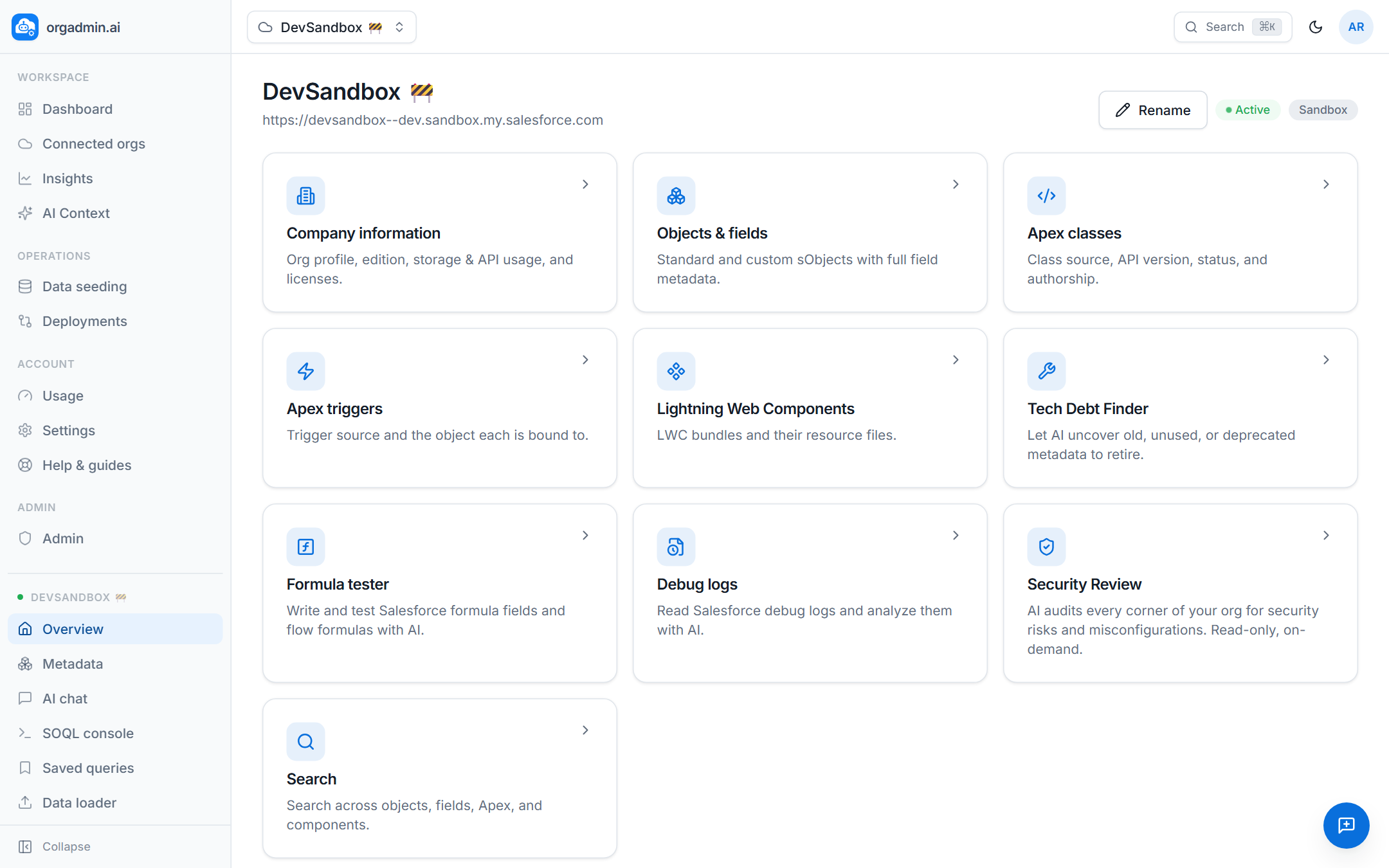
- Open Objects & fields, find an object you know well, and click a field. Then press Find usages. That one button — “what breaks if I delete this?” — is the thing most people wish Setup had.
- Press ⌘K / Ctrl K and type the name of anything. The command palette reaches every page and every org.
- Open Company information for edition, storage, API usage and licence consumption on one screen, instead of four Setup pages.
4 · Turn on the AI
On a bring-your-own-key plan the AI features run on your API key rather than ours. Go to Settings → Your AI provider, paste an Anthropic, OpenAI or OpenRouter key, and pick a model. Haven't got an API account? A free OpenRouter model is enough to get you through the rest of this guide.
You are paying your provider directly
5 · Ask it something real
Open AI chat inside the org and ask a question you would otherwise have had to go digging for. Good first questions, because they exercise different parts of the app:
- “Which validation rules fire on Opportunity, and what does each one enforce?” — reads metadata you just pulled.
- “How many Accounts have no owner activity in the last 12 months?” — makes it write and run a SOQL query.
- “What Apex references the Contact.Email field?” — searches the code it has stored.
Check its work
Where to go next
- Working with a team? Workspaces, navigation & roles explains what is shared and what stays yours.
- Want the org in your editor? Connect your AI client (MCP) puts these tools inside Claude Code, Claude Desktop or Codex, paid for by your existing AI subscription.
- Inherited a messy org? Start with Tech Debt Finder and Flow Health — both tell you where the bodies are buried without changing anything.
- Securing your own account: turn on two-factor authentication in Settings.