orgadmin.ai can act as an MCP server — a set of tools that an outside AI client connects to and drives — your IDE's AI assistant, an agent CLI, or anything else that speaks MCP. Instead of this app paying for AI and metering your tokens, your own AI subscription pays for the thinking and orgadmin.ai just supplies the Salesforce capability. No AI provider key needed here, no token allowance consumed.
In practice: you work in your own editor or terminal, ask for something in plain English, and your assistant reaches into your connected orgs to answer — reading schema, Apex, flows and live data, and (if you allow it) changing records.
This is an alternative to the in-app assistant, not a replacement
How it works
MCP (Model Context Protocol) is an open standard for giving an AI client tools it can call. orgadmin.ai exposes one endpoint — /api/mcp — that speaks it. You authenticate with a personal access token you create in Settings, and your AI client sends that token with every request.
Every tool call lands back in the same machinery the web UI uses: the same tenant checks, the same workspace roles, the same read-only Salesforce client, and the same audit log. A token is a view onto what you can already do — it can never exceed your own access.
Before you start
- The feature must be switched on for your deployment. It ships off, because it opens a new authenticated endpoint. If the MCP card in Settings shows a warning instead of a form, an operator needs to enable it.
- At least one connected Salesforce org — see Connect your Salesforce orgs. MCP cannot connect an org for you; that needs a browser sign-in.
- An AI client that supports remote MCP servers over HTTP with a custom header — Claude Code, Codex CLI and most AI-enabled editors do. Clients that can only launch a local process, Claude Desktop among them, connect through the small bridge described in Step 2 instead. See what can't connect for the exception.
Step 1 — Create an access token
- 1
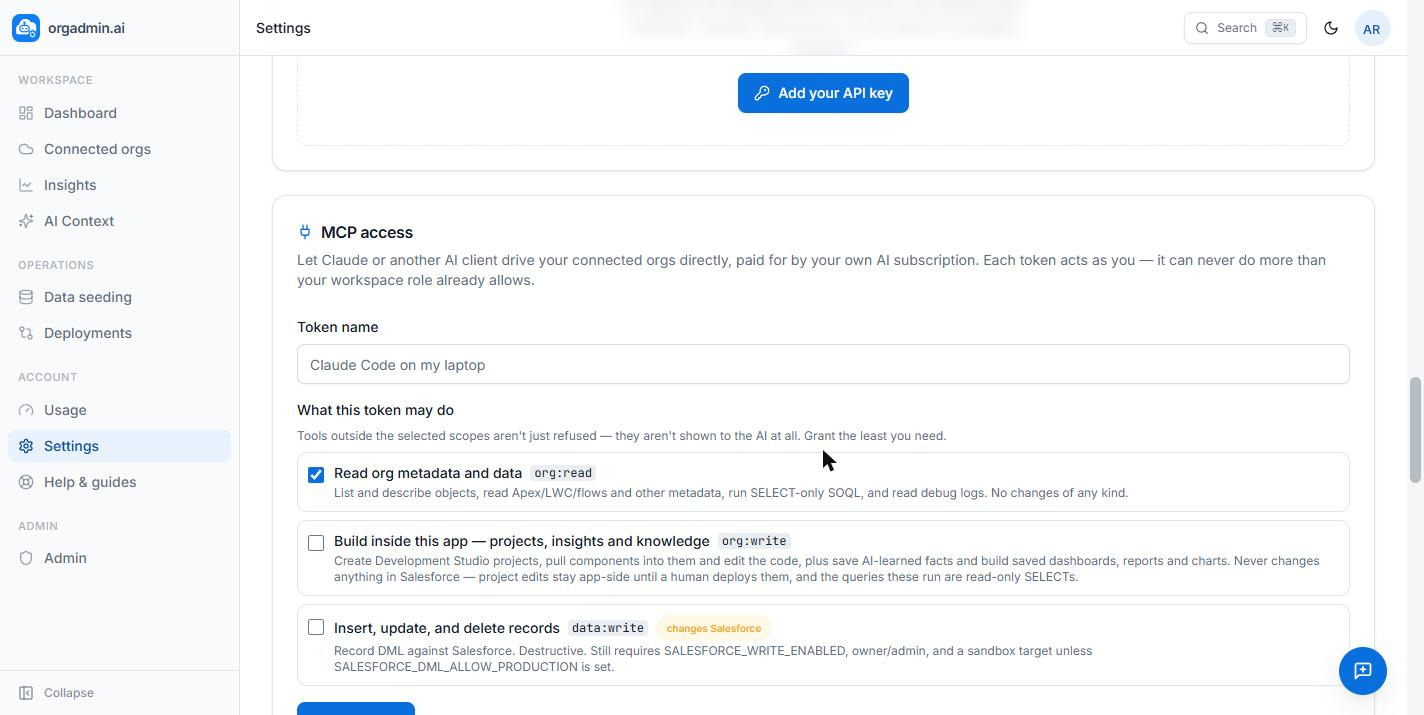
Open Settings → MCP access
Go to Settings and find the MCP access card. - 2
Name the token after the machine that will use it
Something like Cursor on my laptop or work desktop CLI. You'll thank yourself when you have three of them and need to revoke one. - 3
Choose what it may do
Tick only what you need. Scopes are the main safety control here, and they do more than refuse calls — a tool outside your scopes is never shown to the AI at all, so it can't attempt something and fail. Fewer scopes also means a shorter tool list, which makes the AI pick the right tool more reliably.org:read— read everything: objects and fields, Apex, LWC, flows, other metadata types, debug logs, and read-only SOQL. No changes of any kind. This alone is enough for most work.org:write— lets the AI build inside orgadmin.ai: Development Studio projects (pull components in and edit the code), durable facts about your org (the same notes the in-app assistant keeps), and saved dashboards, reports and charts on your Insights page. Never changes anything in Salesforce — project edits stay here until you deploy them, and the queries behind an insight are read-only.data:write— insert, update, upsert and delete records in Salesforce. Real changes to real data. Only tick this if you want it.
- 4
Copy the token immediately
It is shown once. Only a hash is stored, so nobody — including us — can show it to you again. Lose it and you revoke it and make another.
Step 2 — Add the server to your AI client
Whatever tool you use, it needs the same three things. If your client shows a form, fill these in; if it wants a config file, use the JSON below.
- URL —
https://orgadmin.ai/api/mcp - Transport — HTTP (streamable HTTP). Not stdio, and not SSE.
- Header — name
Authorization, valueBearer oamcp_your-token-here(the word Bearer, a space, then your token).
Using Claude Code, Claude Desktop or Codex?
Other clients
The config shape most MCP clients read. Transport is HTTP — not SSE, not stdio.
- Add the server to your client config — If an mcpServers block already exists, add this entry alongside the others rather than replacing them. Some clients name the top-level key servers, and some use serverUrl in place of url.
{ "mcpServers": { "orgadmin": { "type": "http", "url": "https://orgadmin.ai/api/mcp", "headers": { "Authorization": "Bearer oamcp_your-token-here" } } } } - Confirm the connection and the token in one step — It reports which account the connection is authenticated as, the token’s name, and the scopes it was granted.
Where that file lives is the one thing that differs per tool, and your tool's own docs will name the path. Two variations worth knowing if the block above is rejected:
- Some clients name the top-level key
serversinstead ofmcpServers. - Some use
serverUrlinstead ofurl, or infer the transport from the URL and rejecttype.
Confirm the connection and the token in one step
Keep the token out of shared files
Step 3 — Try it
Good first asks, in rough order of ambition:
- “List my connected Salesforce orgs.” — proves the connection.
- “What fields are on Opportunity in my sandbox?” — note you can name an org the way you named it here; you don't need to paste an id.
- “What automation runs on Account, and is any of it likely to conflict?”
- “Find every Apex class that references Loan__c and tell me which ones do DML in a loop.”
- “Build me a pipeline dashboard for production — open opportunities by stage and owner, with a date filter.” — needs
org:write; it lands on your Insights page.
The server also ships ready-made prompts, which clients that support them usually surface behind a / menu: explore_org for an orientation on an unfamiliar org, investigate_error to work backwards from a debug log, security_review and tech_debt_scan to run either audit and record it here, build_metadata for writing Apex or flow XML grounded in what the org already does, and build_insight for a dashboard, report or chart. They exist because they carry the ordering knowledge — check automation before proposing a trigger, confirm field names before writing SOQL, verify every tile before saving a dashboard — that the in-app assistant gets from its own system prompt.
What it can do
With org:read, your AI client gets 43 tools. Twenty-two more unlock with the write scopes.
- Find your way around — list the connected orgs (with sandbox vs production and your role), read Company Information: edition, org id, instance, locale and fiscal year, storage and API usage, and licence counts.
- Schema — list objects, describe one object's fields, relationships, picklist values and record types, and read the configuration defined on an object: record types, validation rules, page layouts, Lightning pages.
- Automation — everything that runs on one object in a single call: Apex triggers, record-triggered flows with their timing, workflow rules and validation rules. This is the one to reach for before adding automation.
- Flows — list every flow and Process Builder process with its kind, trigger object, active state and version history, then read one flow's logic: its elements in order, the Apex it invokes and the subflows it calls. It reads the active version by default — the one that actually runs — and the complete raw definition is one flag away.
- Any metadata type — discover which types exist in the org, list their components, then read full definitions: workflow rules, approval processes, custom labels, named credentials and more.
- Code — list and read Apex classes and triggers, and LWC bundle files (HTML/JS/CSS/meta).
- Debug logs — list captured logs, filter to failures, and read a full execution trace to pinpoint an error, find the slowest SOQL, or read governor-limit usage.
- Live data — run read-only SOQL.
SELECTonly; anything else is rejected outright. - Search — full-text search across cached metadata to find where something is referenced, which is how you do impact analysis before a change.
- Deployment results — read what happened when you deployed or validated: the component compile errors and Apex test failures, each with its line number. This is what lets your assistant fix the error that actually happened instead of the one it guessed at. It still can't start a deployment.
- Deep links — turn a record id or component into a real Salesforce URL you can click, using your own Salesforce session.
- Skills — load the same Salesforce domain playbooks the in-app assistant uses before it writes Apex, flow XML or permission sets.
- Insights — list what you've built on the Insights page and read how any of it is calculated.
- Past audits — read any Security Review or Tech Debt run: the score, the coverage matrix, every finding, and what still needs checking by hand. Also installed packages with their licence usage, which is how you spot an app that's installed and assigned to nobody.
- With
org:write— build a change in a project. Ask your assistant to start a Development Studio project, pull in the Apex classes, Lightning components and metadata it touches, and edit them. Every edit is saved here as a draft, and each finished change is recorded as a version you can read the diff of and roll back. Keep the project open while your assistant works and you will see each component appear and change as it lands — no refresh, and anything you are part-way through typing is kept. Then you open the project, review it, and deploy. The AI has no deploy or validate tool — that step is yours.
Big files are handled in pieces, which is why a four-thousand-line class or component works: your assistant searches the project for the line it wants, reads a window around it rather than the whole file, and writes a long file in parts that appear in your editor one after another. - With
org:write— create custom objects and fields. Ask for “a restricted picklist on Account with three values” and your assistant builds the metadata from a structured description rather than hand-writing XML, so the field type, length, picklist values and relationship targets are checked before anything is written. Adding fields to an object that already exists produces a fields-only file, which deploys the fields and leaves the object itself untouched. It all lands in a project for you to review and deploy — same rule as above. - With
org:write— save a durable org fact to orgadmin.ai's knowledge base, shared with your teammates and visible on the Org Context page, and build dashboards, reports and charts from your own editor: your assistant writes the SOQL, verifies every tile against the live org, and saves the result to your Insights page. These are orgadmin.ai assets — not Salesforce Reports and Dashboards, and nothing is deployed to the org. - With
org:write— run a Security Review or a Tech Debt scan from your own client. Ask for either audit and your assistant drives it here: for a Security Review it opens a run, works through the fourteen audit modules — those still execute on our side, because they need Tooling and Metadata API reads — reads the evidence each returns, and adds its own judgment findings on top. For Tech Debt it sweeps with the read tools and posts candidates as it goes. Either way the run lands on the normal page, filling in while you watch, and you triage it exactly as if you'd clicked the button yourself. Results are saved at every step, so a review that's interrupted halfway keeps everything up to that point. Because your own client does the thinking, these runs use none of your workspace's AI tokens. - With
data:write— insert, update, upsert or delete records.
Your orgs and the skill library are also exposed as resources, so you can attach “which org am I working on” to a conversation once instead of restating it.
What it can't do
Deliberate limits, and current ones. Both matter before you plan around it.
Not supported today
- Clients that require OAuth can't connect yet. Authentication here is a token you paste into a header, so any client that lets you set one works — and for Claude Desktop the downloadable extension carries the token for you. What is still out of reach is the connector directory in the ChatGPT and Claude web apps: listing a server there requires this server to run a full OAuth authorisation flow, which isn't built. Editor, CLI and desktop-extension integrations are the ones that work today.
- The extension is Claude Desktop's format, not a universal one.
.mcpbbundles install into Claude Desktop; ChatGPT and Codex don't read them. Codex connects over HTTP with theconfig.tomlblock in Step 2, which needs no bundle. - Deploying and validating metadata aren't available over MCP — by design. The AI can write the Apex, LWC or flow XML and save it into a Development Studio project; you deploy it, from the project or from Deployments. That is where the target org, sandbox-versus-production, the Apex test level and the diff are all in front of a person. Even a check-only validation submits a package to a live org, so it stays on your side of the line too. This isn't a setting you can turn on: there is no such tool in the catalogue.
- Deleting Salesforce files isn't available over MCP — use File Explorer in the web UI.
- You'll only be offered scopes that actually do something. If the scope list looks shorter than this guide suggests, that's why.
Never, by design
- Connecting a new Salesforce org. That needs a browser OAuth sign-in.
- Anything your Salesforce user can't do. Calls run as the user who authorised the org, so their profile and sharing rules still apply. Managed and protected metadata stays hidden.
- Anything your workspace role can't do. Record changes need owner/admin; a read-only member holding a
data:writetoken still can't write. - Writing when your deployment forbids it. Record changes also require writes to be enabled server-wide, and are restricted to sandboxes unless an operator has explicitly allowed production.
- Platform administration. Impersonating users, exporting or restoring the database are not exposed to AI clients. One bad tool call there would be a whole-platform problem, so they stay in the web UI.
- Non-SELECT SOQL, and reading your AI provider key, anyone's password, or any stored Salesforce token.
It also can't see an org it hasn't pulled
Security & what a token can reach
- A token acts as you. Treat it like a password: anyone holding it has your granted scopes across every org in your workspace. It is stored only as a SHA-256 hash.
- Revoking is instant. Every single call re-checks the token, so revoking cuts a client off mid-conversation. Deactivating an account does the same to all of its tokens.
- Everything is audited. Each call is recorded with the tool, the arguments, the org it touched, the token that made it, and whether it succeeded — alongside the audit trail from the web UI.
- You can read that trail yourself. Usage has an MCP activity log: every client that connected, which token it used, every tool call with its arguments and how long it took, and anything that failed. Check it if a token has been on a shared machine, or when you want to know what your assistant actually did.
- Destructive tools are flagged so your client asks before running them.
Read those confirmation prompts
org:readremoves this concern entirely.Troubleshooting
- “Tool not found” for something this guide lists — your token lacks that scope, so the tool was never offered. Scopes are fixed when the token is created: make a new token with the scope you need. Run
whoamito see what you have. - 401 / “Unknown or revoked token” — the token is wrong, revoked, expired, or the account was deactivated. All four look identical on purpose, so the endpoint can't be used to fish for valid tokens. Create a fresh token.
- 404 on the endpoint — MCP is switched off for this deployment.
- Anything client-specific — a connection that fails at startup, a client that connects but lists no tools, an extension that installs but can't call anything: those live in Connect Claude Code, Claude Desktop & Codex, sorted by symptom.
- “Data writes are disabled on this server” — an operator setting, not something you can work around from the client.
- “Restricted to sandbox orgs” — you aimed a record change at production and this deployment only permits sandbox writes.
- “matches more than one org” — two orgs match the name you used. It refuses to guess rather than risk the wrong org; pass the exact orgId from
list_orgs, or rename an org in Settings. - A result was “too large to return” — ask for less: filter the list, request fewer components, or add a
LIMIT. Profiles especially are huge — read one at a time. - A big file won't write, or a read comes back cut off — the ceiling here is your AI client's, not ours. A single reply can only carry so much, so a tool call that tries to send a few thousand lines at once is truncated before it arrives, and a result that big is trimmed before your assistant reads it. The tools are built for this: ask it to search the project for the line it needs, read a range rather than the whole file, and write a long file in parts. If your assistant tries the same oversized call twice, say so — that phrasing is usually enough. In Claude Code you can also raise
MAX_MCP_OUTPUT_TOKENSto let bigger results through. - Rate limited — there's a per-token ceiling on tool calls per minute. Wait a moment and continue.