Every feature in orgadmin.ai works against a Salesforce org you connect. Connecting is a clicks-only, five-minute task: you create an External Client App in Salesforce Setup, paste its Consumer Key and Secret here, and approve access with OAuth. There are no packages to install and no code to run, and your Salesforce password is never entered into orgadmin.ai.
External Client Apps, not Connected Apps
How the connection works
orgadmin.ai connects through OAuth 2.0 (the Authorization Code flow, with PKCE) using an External Client App that lives in your own org. That means access is granted by Salesforce, scoped to exactly what you approve, and revocable by you at any time — from inside this app or from Salesforce Setup. After you approve, orgadmin.ai stores an encrypted refresh token and uses it to make API calls as the user who authorised; it sees only what that user's profile and permissions allow.
The whole flow is just two stages, and this guide walks each one click by click:
- Step 1 (in Salesforce) — create an External Client App and copy its two credentials: the Consumer Key and Consumer Secret.
- Step 2 (in orgadmin.ai) — paste those two values, pick your login type, and approve the OAuth prompt. Done.
Read-only by default
Before you start
Make sure you have all three of these — it saves a round trip mid-setup:
- An org with API access — Enterprise, Unlimited, Performance, and Developer editions, plus all sandbox types. (Professional Edition needs the API add-on.)
- Permission to create an External Client App — usually a System Administrator, or a user with the Customize Application permission. If your New External Client App button is missing, see the troubleshooting note at the bottom.
- About five minutes, and this orgadmin.ai window open in another tab so you can copy the callback URL across.
Keep both tabs open
Step 1 — Create an External Client App in Salesforce
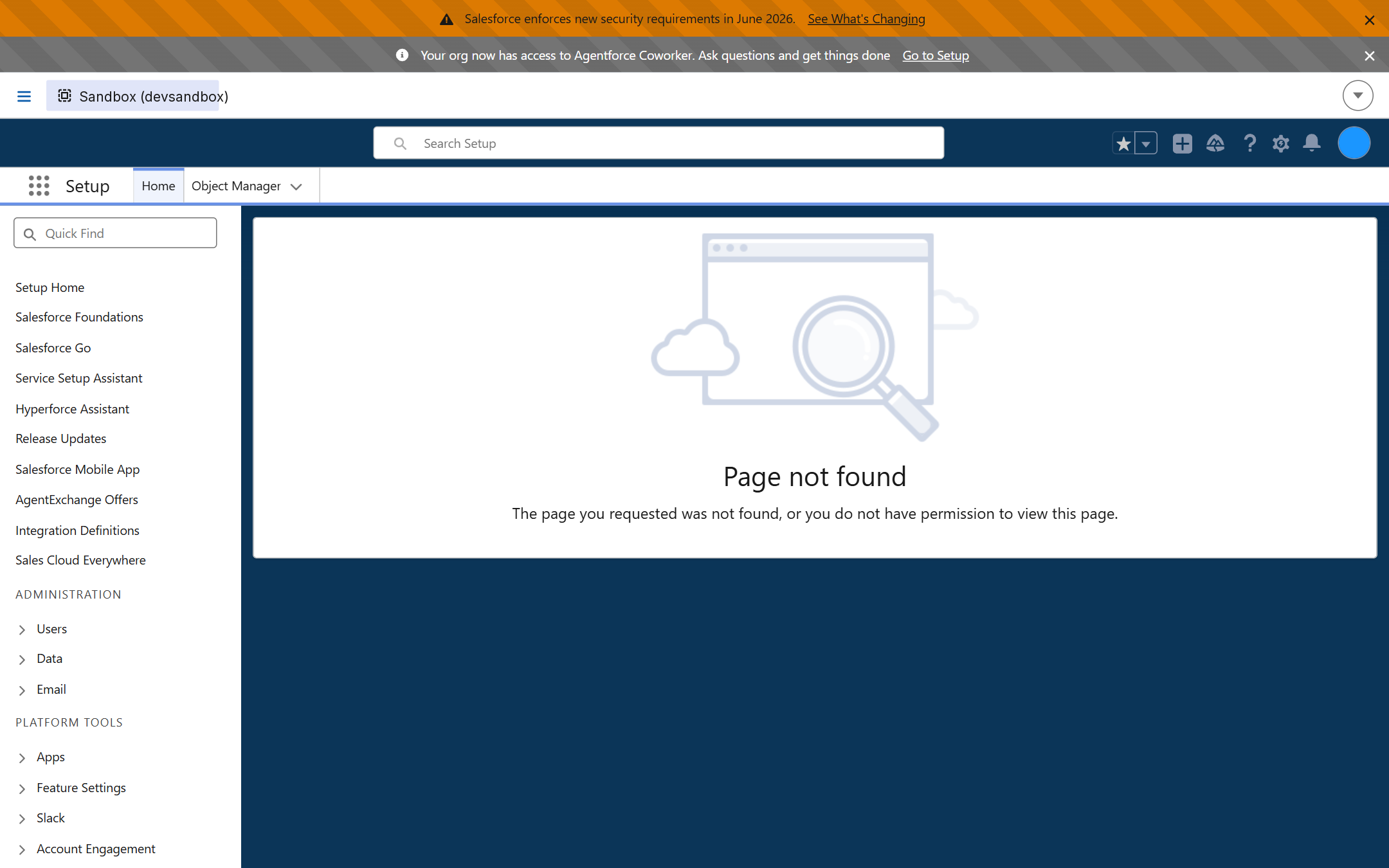
Do this once per org (or reuse one External Client App across several orgs — see the tip at the end of this step). In Salesforce, open Setup, and in the Quick Find box type App Manager and open it. (You can also reach it under Setup → Apps → App Manager, or via External Client App Manager — either lists your apps.)
- 1
Start a new External Client App
In the top-right corner, click New External Client App (it sits next to the older New Connected App button — pick the External Client App one). - 2
Fill in the Basic Information
Give it a Name such asorgadmin.ai— the API Name fills in automatically — and a Contact Email. Set Distribution State to Local (this app is only used inside your own org, not packaged for distribution). The name, email, and any logo are just labels; they don't affect how the connection behaves. - 3
Enable OAuth
Expand the API (Enable OAuth Settings) section and tick Enable OAuth. This reveals the Callback URL and scope fields. - 4
Paste the exact callback URL
Switch to the orgadmin.ai Connect a Salesforce org panel, copy the callback URL shown there (there's a copy button next to it), and paste it into the Callback URL box in Salesforce. It ends in/api/salesforce/oauth/callbackand must match exactly — scheme (https), host, and path. A single stray character here is the most common cause of a failed connection. - 5
Select the OAuth scopes
From the Available OAuth Scopes list, add these four to Selected OAuth Scopes:api— Manage user data via APIsrefresh_token— Perform requests at any timeid— Access the identity URL serviceweb— Provide access to your data via the Web
- 6
Leave the security defaults as they are
External Client Apps ship with sensible defaults that already match how orgadmin.ai connects, so you normally don't change anything here:- Require Proof Key for Code Exchange (PKCE) — leave it enabled. orgadmin.ai always sends a PKCE (S256) challenge, so this works out of the box. (This is different from the old Connected App advice, which told you to switch PKCE off.)
- Require Secret for Web Server Flow — leave it enabled. orgadmin.ai sends your Consumer Secret when it exchanges the code for tokens.
- Require Secret for Refresh Token Flow — leave it enabled too; the secret is sent on every token refresh.
- 7
Create the app
Click Create (or Save). Salesforce can take 2–10 minutes to fully activate a brand-new app — if the first connection attempt says the client isn't found, wait a couple of minutes and try again. - 8
Reveal the Consumer Key and Secret
Back in the External Client App Manager, find your app, open its row menu and choose Edit Settings (or open the app and go to the Settings tab). Expand OAuth Settings and click Consumer Key and Secret. You may be asked to verify your identity with a code. This reveals the two values you'll paste into orgadmin.ai: Consumer Key and Consumer Secret.
Give a brand-new app a few minutes before connecting
invalid_client_id or “the app isn't found” even though everything is set up correctly. This is expected — wait a few minutes and try again, and it'll go through. You only hit this the very first time you create the app; reconnecting later is instant.Why the web scope matters
web scope powers the one-click Open button (logging you straight into the org from orgadmin.ai). If you skip it, everything else still works, but you'll be prompted to reauthorize before Open becomes available.External Client App settings that trip people up
One External Client App, many orgs
Step 2 — Authorise the org in orgadmin.ai
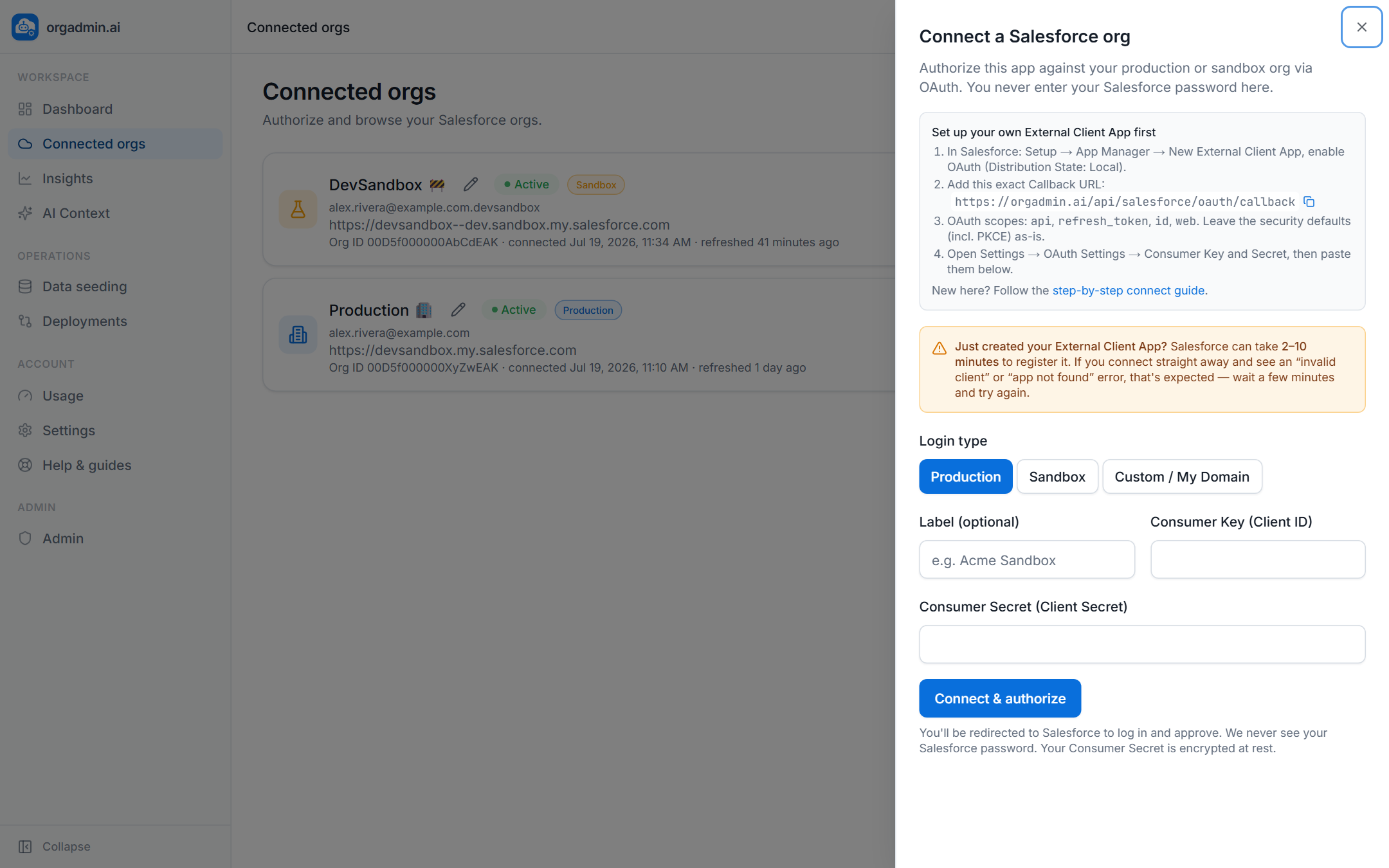
Go to Connected orgs and click Connect a new org (the same button is on the Dashboard). A panel opens with the setup checklist and the exact callback URL to copy:
- 1
Choose the login type
Pick Production, Sandbox, or Custom / My Domain. See the next section if you're unsure — choosing the wrong one is a common first-time snag. - 2
Label it (optional)
A friendly display name like “Acme UAT”. You can rename the org at any time later, and the name shows everywhere the org appears in the app. - 3
Paste your credentials
Enter the Consumer Key and Consumer Secret from your External Client App. Paste carefully — a leading or trailing space is a frequent cause of an “invalid client” error. The secret is encrypted at rest (AES-256-GCM), never logged, and never sent back to the browser. - 4
Connect & authorise
Click Connect & authorise. You're redirected to Salesforce to log in and approve the requested scopes — this is where you authenticate, so orgadmin.ai never sees your password. MFA, SSO, and IP policies all apply exactly as they do for any Salesforce login. - 5
Land back on your org
After approving, Salesforce sends you back and the org appears in your list with an Active status and a green “Org connected successfully” banner. From here, hit Explore and pull some metadata.
Connect as many orgs as you like
Production, sandbox & My Domain
The login type tells Salesforce which login host to start OAuth on:
- Production — production and Developer Edition orgs (
login.salesforce.com). - Sandbox — any sandbox (
test.salesforce.com). Sandboxes get a distinct amber badge throughout the app so you always know where you are. - Custom / My Domain — paste your full My Domain URL, e.g.
https://acme.my.salesforce.comorhttps://acme--dev.sandbox.my.salesforce.com. Use this when your org enforces My Domain login or you're behind SSO. It must be a validhttpsURL; the app uses just the origin.
Connection statuses
- Active — tokens are valid; everything works.
- Expired — Salesforce rejected the stored refresh token (it was revoked, rotated, or the sandbox was refreshed). Data you've already pulled still browses fine; live features pause until you Reauthorize.
- Revoked — you disconnected the org. Cached metadata is cleared; connect again whenever you like.
Sandbox refreshes invalidate tokens
Managing a connection
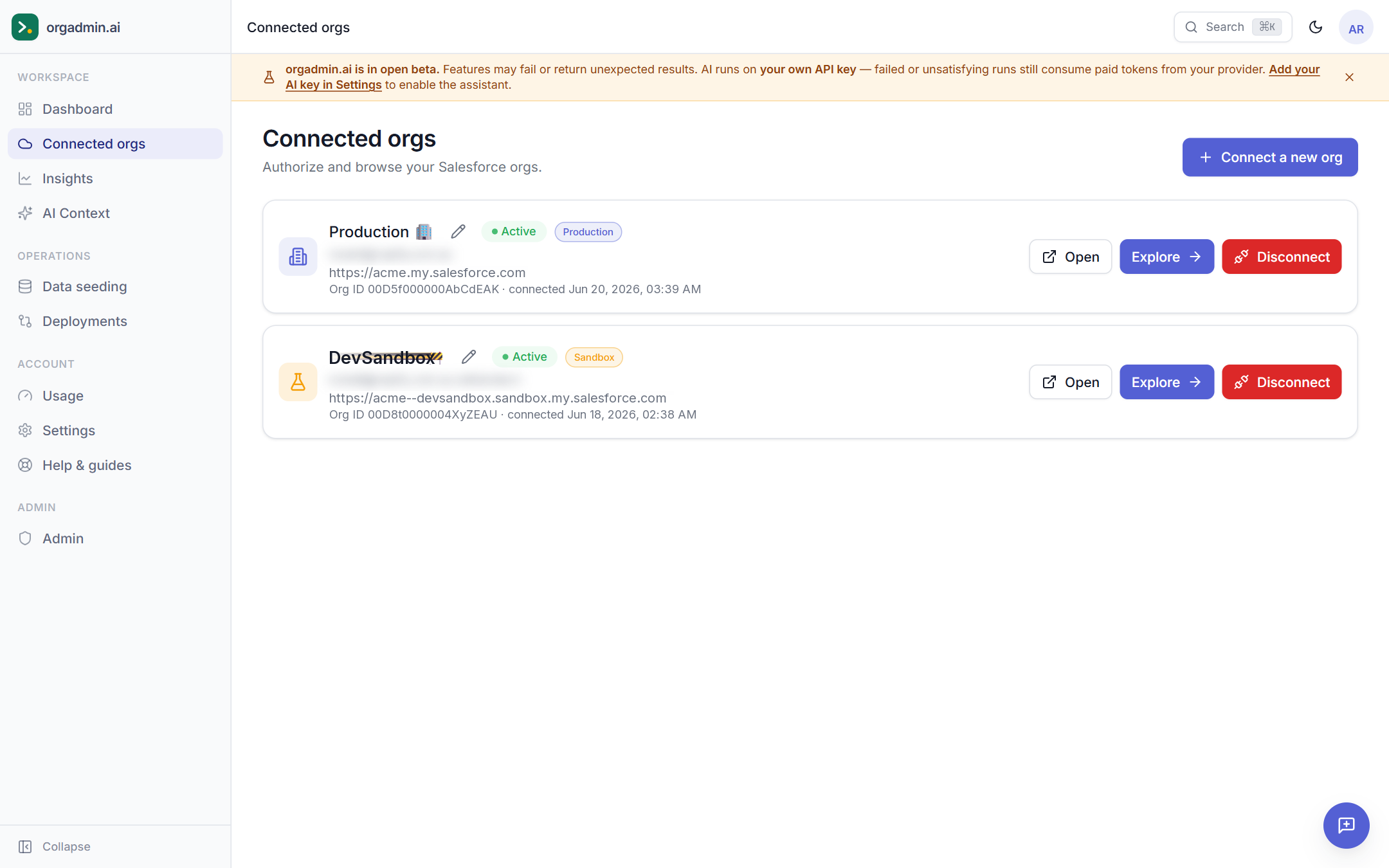
Each org card on the Connected orgs page has controls for its lifecycle:
- Explore — open the org inside orgadmin.ai (metadata, chat, tools).
- Open — one-click login straight into Salesforce in a new tab, using a single-use login link (requires the
webscope). No password prompt, no MFA re-entry. - Reauthorize — appears when a connection is expired or missing the
webscope. It re-runs OAuth against the stored External Client App and refreshes tokens; your pulled metadata stays intact (no disconnect needed). - Rename — the pencil icon next to the org name. Give the org a friendly display name; it shows platform-wide, including the org switcher and sidebar.
- Disconnect — revokes this app's token in Salesforce and clears the org's cached metadata here.
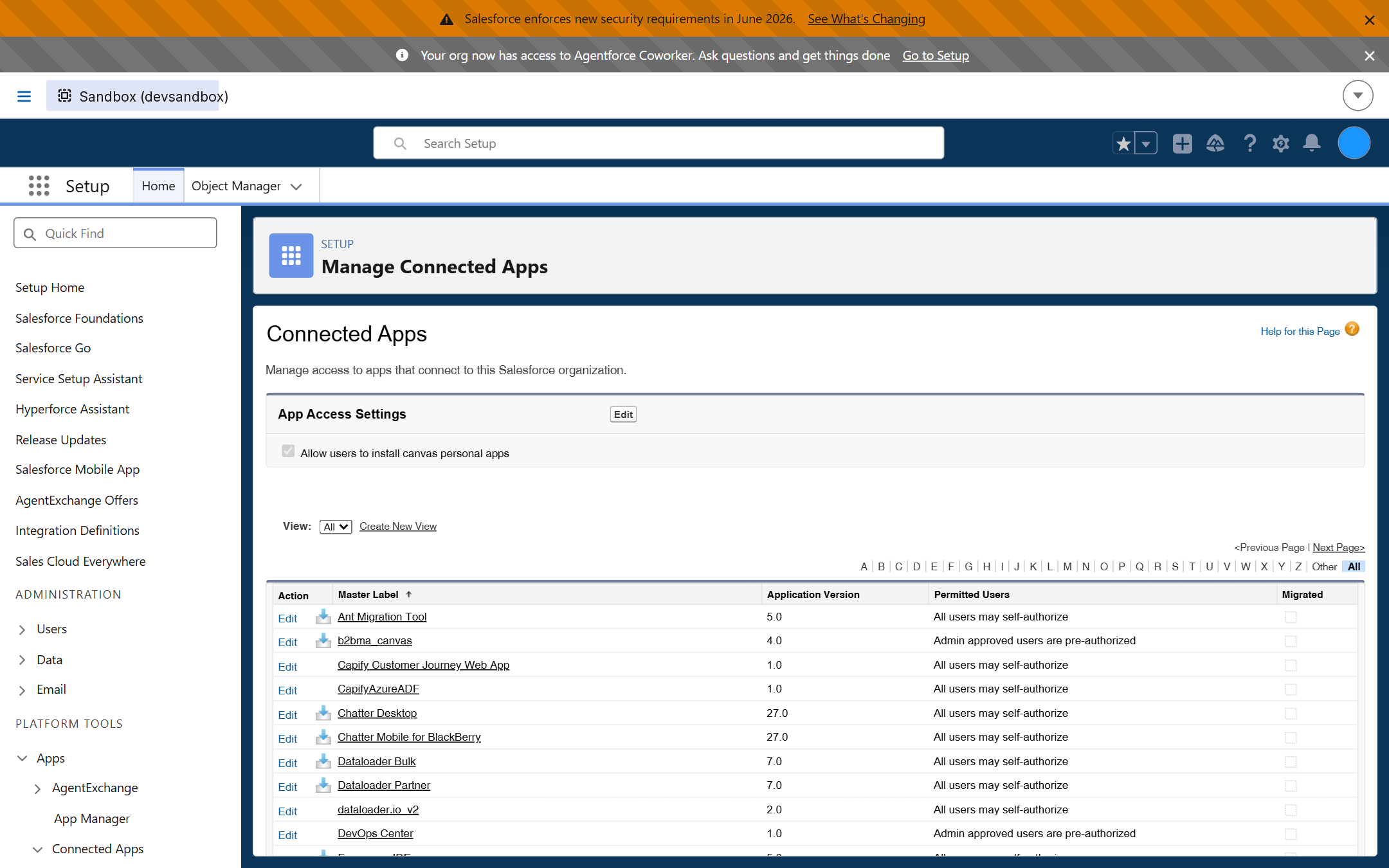
You can also review connections in Settings → Salesforce connections, and audit or revoke the grant from the Salesforce side at any time. In Salesforce, open Setup → App Manager (which lists both External Client Apps and any legacy Connected Apps), or use Setup → Connected Apps OAuth Usage to see live sessions and revoke them:
Troubleshooting
Most connection problems come from the External Client App setup. Common fixes:
- No “New External Client App” button — you may lack the Customize Application permission, or an admin has restricted app creation. Ask an administrator to grant the permission, or check Setup → External Client App Settings to confirm creation is allowed in the org.
- “redirect_uri_mismatch” — the Callback URL in Salesforce doesn't exactly match the one shown in the connect panel. Re-copy it with the copy button; watch for a trailing slash, a different domain, or
httpvshttps. - “invalid_client_id” or the app isn't found — the External Client App may still be activating (2–10 minutes for new apps), or the Consumer Key was copied with a stray space. Wait, re-copy, retry.
- “invalid_grant” on the callback — usually a Consumer Secret mismatch (re-copy it), or the Require Secret for Web Server Flow setting was turned off after connecting. Keep that setting enabled and reauthorize.
- “OAUTH_APP_BLOCKED” or admin approval errors — under the app's Policies → OAuth Policies, Permitted Users is set to pre-authorised admins only, or API access is restricted. Relax the policy or assign your profile/permission set to the app.
- Wrong login host — connecting a sandbox with the Production login type (or vice versa) fails at the Salesforce login step. Pick the right type, or use Custom / My Domain with the org's exact domain.
- Login works but Open doesn't — the External Client App is missing the
webscope. Add it in Salesforce, then click Reauthorize. - Connection flips to “expired” — the refresh token was revoked, the password of the connecting user was reset, or a sandbox was refreshed. Click Reauthorize to recover without losing pulled data.
- “insufficient access” on some data — orgadmin.ai mirrors the connected user's permissions. Connect (or reauthorize) with a user that has the access you need — many teams use a dedicated integration user.
Still stuck?